




Tips and Tricks – Xero's Magnifying Glass Search Function

Finding specific transactions or details buried within financial data can be a daunting and time-consuming task but Xero's Magnifying Glass Search function provides users with a comprehensive and intuitive search tool to find data quickly.
Instead of scrolling through numerous pages, users can simply type in keywords, contacts, phrases or amounts related to the information they need, and Xero will instantly display relevant results.
Whether it’s locating a particular invoice, reconciled payments, or retrieving historical financial records, Xero's Magnifying Glass Search Function delivers instant access to the relevant data and users can quickly retrieve the required information with just a few keystrokes.
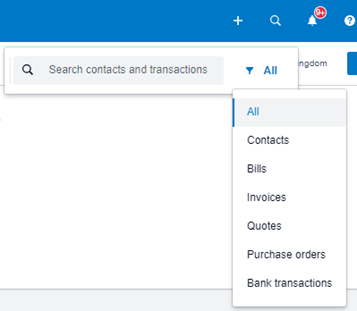
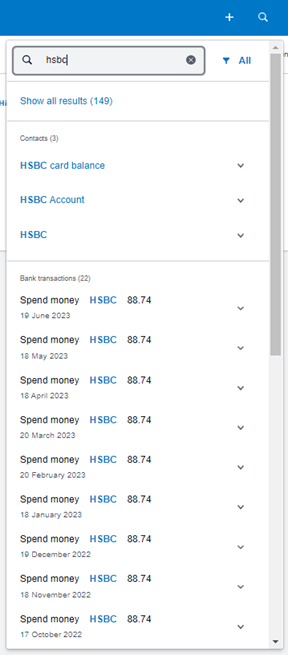
The search function can be found in the browser screen's top right corner, included within the blue taskbar on most of the Xero interfaces. With this example data, entering HSBC will bring up all contacts and transactions containing the term.
Clicking on the dropdown arrow will provide more information about the transaction and clicking on the blue wording will take you directly to the transaction or contact screen.
To narrow the focus of the search to a particular area of the software, click on the All filter and select the area you wish to search e.g. contacts, bills, invoices, bank transactions etc.

Subscribe to
Inspired
Our monthly bulletin INSPIRED is packed with useful articles to keep you up to date with news and legislation that may affect you or your business.


Armstrong Watson can help
Whether you need expert accounting, strategic business advisory, tax planning, or financial guidance, our experienced team is here to support your success. From sole traders to large enterprises, we provide tailored solutions to help you navigate complex financial challenges and achieve your goals. Get in touch today to discover how we can help your business thrive – call 0808 144 5575.


