




Xero Tips & Tricks - Using inventory items to help speed up sales invoices entry

Do you have standard wording on your sales invoices? If so, rather than typing the details on each time you raise an invoice you can use inventory items.
For example:
I would like to invoice Joe Bloggs for the 3 hours I have worked for him along with mileage of 35 miles . My charge out rate is a standard price of £30ph and I charge 40p per mile. I can enter an inventory item for my standard hours and my mileage charge.
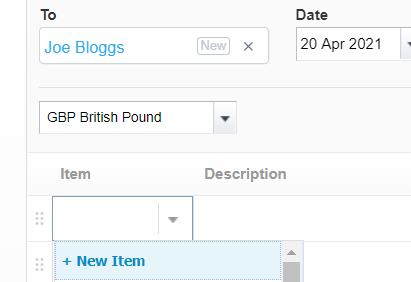
To set these up when creating a new sales invoice click on the drop-down arrow in the Item column and click new
Complete the boxes as follows:
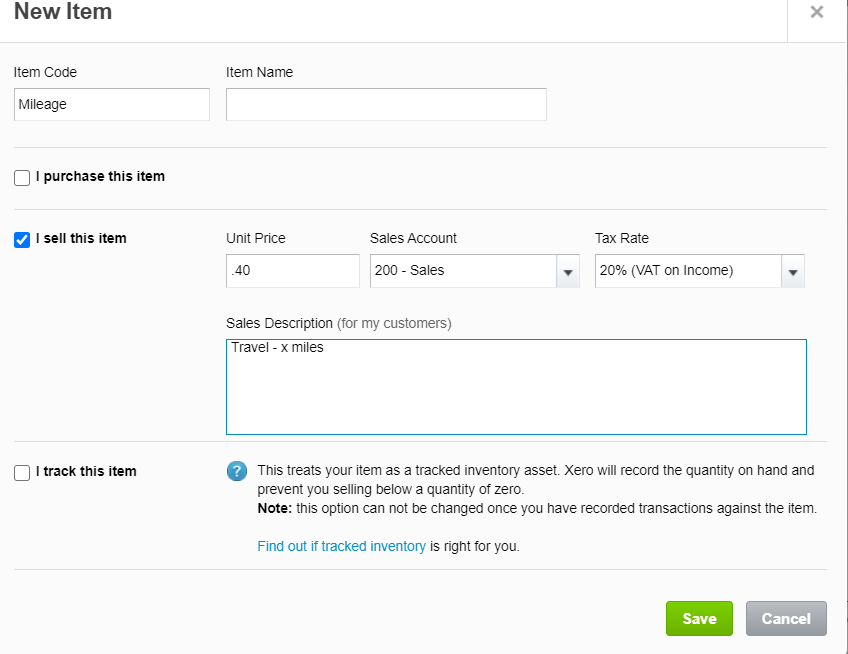
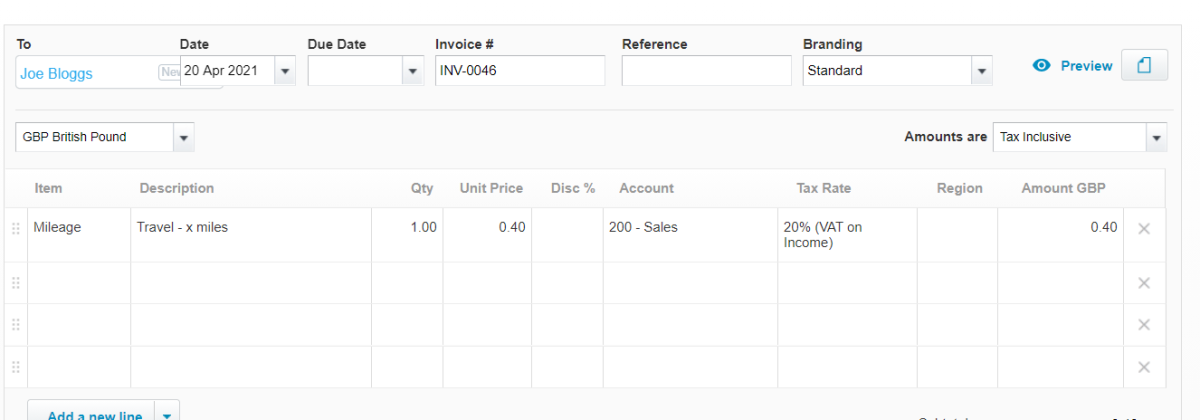
If you charge a different rate each time you can leave the unit price as 0.00 and then edit this on the invoice. Once you have entered the information click save. This will then populate the first line of your sales invoice with the information you entered and all you then need to do is edit the number of miles in the quantity and description to reflect the number of miles you want to charge.
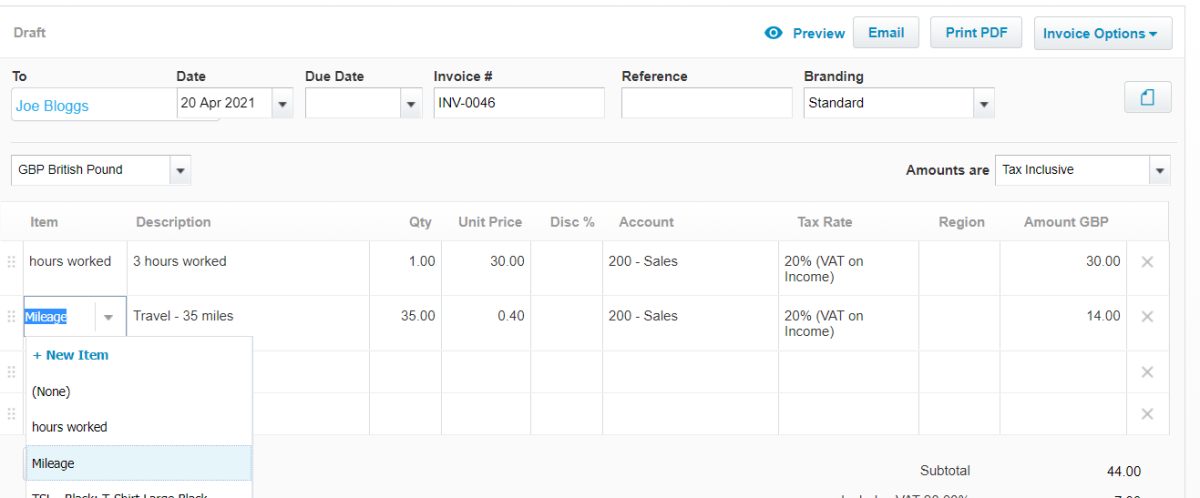
Next time you create an invoice and want to charge mileage you will just need to choose mileage from the drop down menu in the item column
To edit or delete these standard items you can find them in the Business drop-down menu, then Products and Services.
Subscribe to
Inspired
Our monthly bulletin INSPIRED is packed with useful articles to keep you up to date with news and legislation that may affect you or your business.


Armstrong Watson can help
Whether you need expert accounting, strategic business advisory, tax planning, or financial guidance, our experienced team is here to support your success. From sole traders to large enterprises, we provide tailored solutions to help you navigate complex financial challenges and achieve your goals. Get in touch today to discover how we can help your business thrive – call 0808 144 5575.


